# 2. Prefab setup

## Sync with coherence

To start networking, simply select a Prefab or GameObject you wish to network, and on the Inspector window, click **Sync with coherence**.&#x20;

<figure><img src="https://3473996028-files.gitbook.io/~/files/v0/b/gitbook-x-prod.appspot.com/o/spaces%2F8utFtIPIKpqSCWkfmEu3%2Fuploads%2FvMApt237SeDdZ1InV9Jv%2Fimage.png?alt=media&#x26;token=d44c32a5-d3a4-401b-b10f-1f69eddfb9d0" alt=""><figcaption></figcaption></figure>

Now, your Prefab should have a CoherenceSync component attached to it.

To select which properties you want to network, open the Configure window, accessible from within the CoherenceSync Inspector.

<figure><img src="https://3473996028-files.gitbook.io/~/files/v0/b/gitbook-x-prod.appspot.com/o/spaces%2F8utFtIPIKpqSCWkfmEu3%2Fuploads%2Fa3TWEW3NU5QXzovWTq4Q%2Fimage.png?alt=media&#x26;token=68180ca8-48e9-4e03-9aff-59747f19f34f" alt=""><figcaption></figcaption></figure>

{% hint style="info" %}
When new Networked Prefabs are included, or the properties to network are changed, you will need to [Bake](https://docs.coherence.io/1.6/manual/baking-and-code-generation) and make sure the Replication Server (either local or the one in the Cloud) is using the schema generated afterwards.
{% endhint %}

## Video Tutorial

Setting up basic syncing is explained in this video, from 1:00 and onwards:

{% embed url="<https://youtu.be/kyUSiBpZ2Bc?t=63>" %}

## Detailed Step by Step

## **1.** Add `CoherenceSync` component

For an object to be networked through **coherence**, it needs to have a `CoherenceSync` component attached, and **be a Prefab**.

The steps below all do this, but from different starting points: a new [GameObject](#id-1a.-to-a-new-gameobject) (1a), a [pre-existing Prefab](#id-1b.-to-an-already-existing-prefab) (1b), or a [Prefab Variant](#id-1c.-prefab-variants) (1c).

{% hint style="warning" %}
Currently, only Prefabs can be networked.
{% endhint %}

### 1a. To a new GameObject

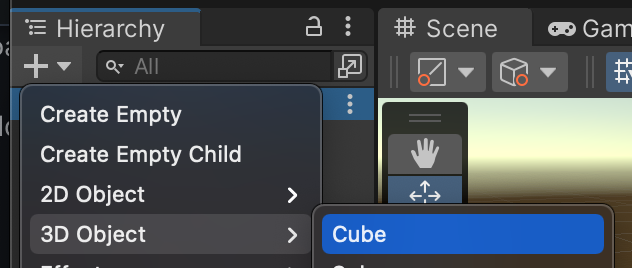
First, create a new GameObject. In this example, we're going to create a cube.

![](https://content.gitbook.com/content/8utFtIPIKpqSCWkfmEu3/blobs/pa87vZiVgnbOmUmdnho9/Screenshot%202022-07-06%20at%2012.33.45.png)

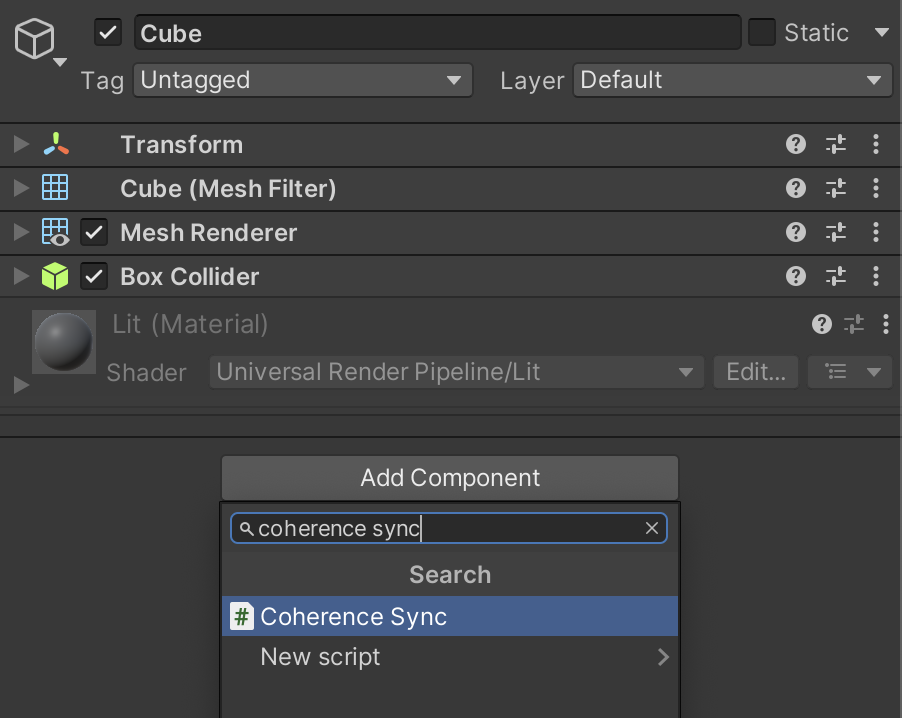
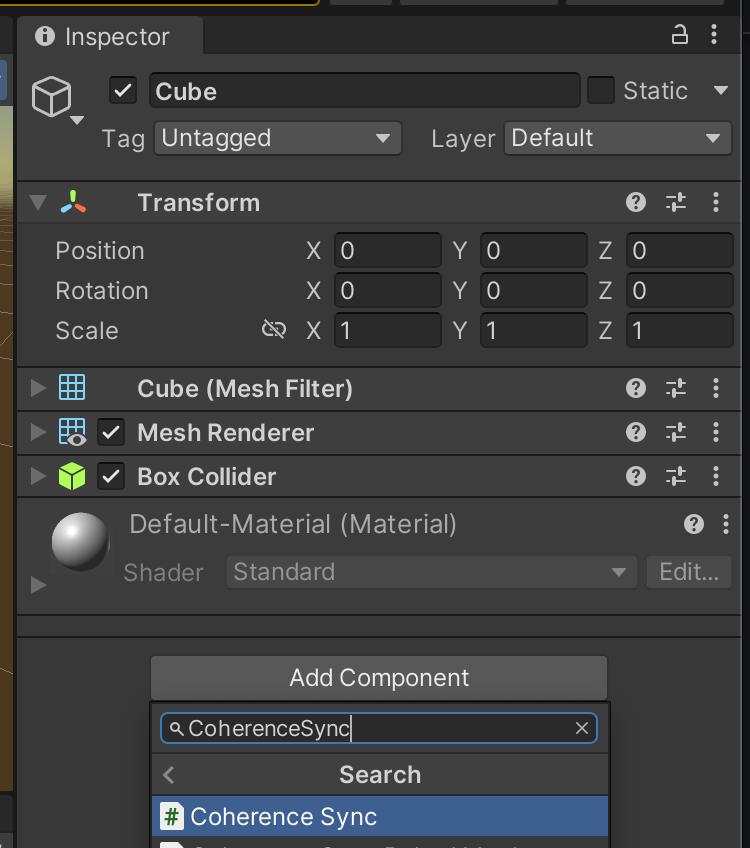
Next, we add the `CoherenceSync` component to **Cube**.
![](https://content.gitbook.com/content/8utFtIPIKpqSCWkfmEu3/blobs/P34O5nSxzYOwumeh9RZS/Screenshot%202022-07-06%20at%2012.37.53.png)

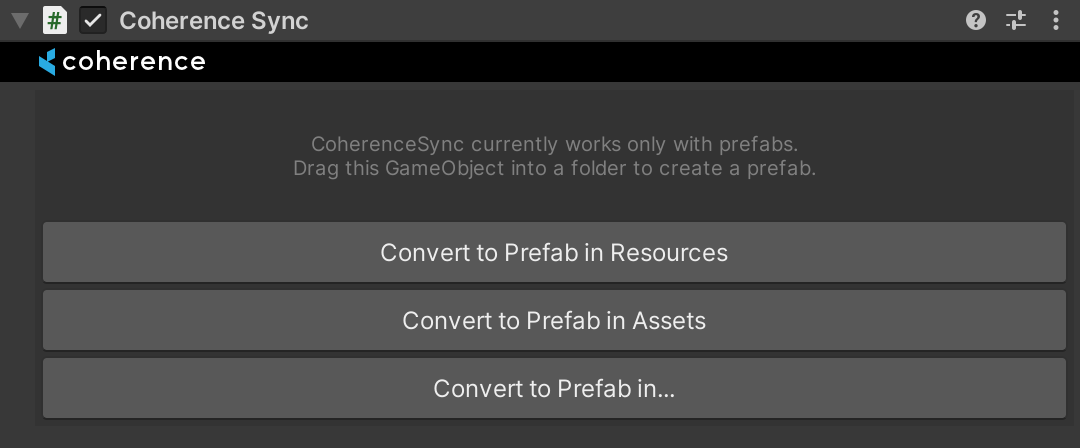
The `CoherenceSync` inspector now tells us that we need to make a Prefab out of this GameObject for it to work. We get to choose where to create it:
![](https://content.gitbook.com/content/8utFtIPIKpqSCWkfmEu3/blobs/5pFFPRlPwng0CS6Jp1SP/CoherenceSync_NotConfigured.png)

### 1b. To an already existing Prefab

First, **ensure you enter** [**Prefab mode**](https://docs.unity3d.com/Manual/EditingInPrefabMode.html), as we **don't** want to add the component as an override.

{% hint style="warning" %}
Ensure you're in **Isolation Prefab editing mode**, not In Context. Read about [Prefab modes](https://docs.unity3d.com/Manual/EditingInPrefabMode.html).
{% endhint %}

Now you can either:

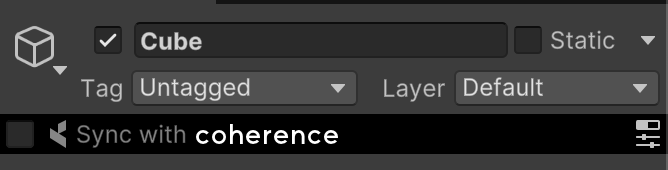
* Click on the **Sync with coherence** checkbox at the top of the Prefab inspector.
<figure><img src="https://content.gitbook.com/content/8utFtIPIKpqSCWkfmEu3/blobs/bwoqhE3nzSFUMe2jW9bX/SyncWith.png" alt="" width="334"><figcaption></figcaption></figure>

* Manually add the `CoherenceSync` component.

<figure><img src="https://content.gitbook.com/content/8utFtIPIKpqSCWkfmEu3/blobs/iKwj2d4Gd1l2dsmolYQB/AddCoherenceSync.png" alt="" width="375"><figcaption><p>Networking an existing Prefab</p></figcaption></figure>

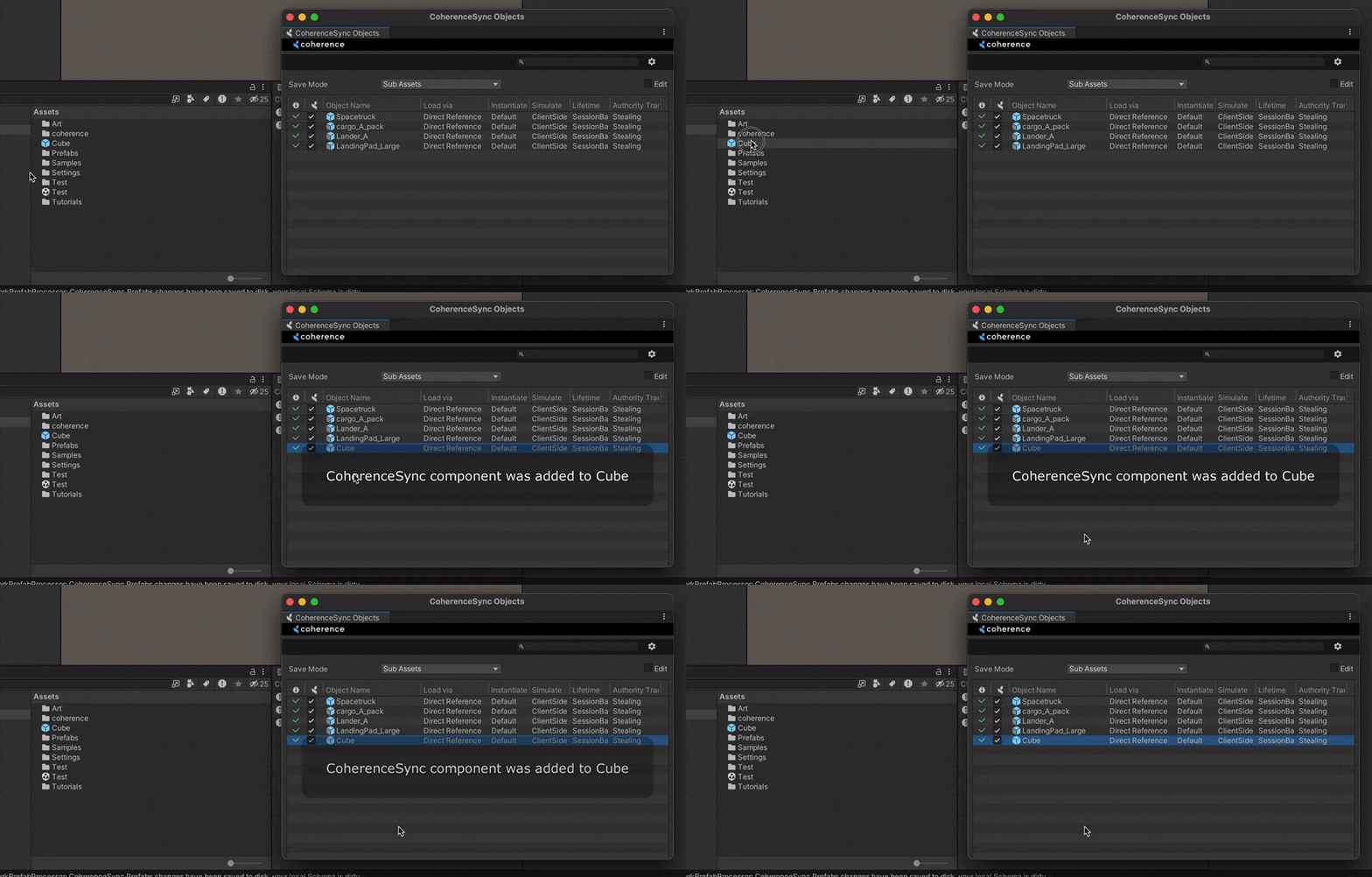
* Drag the Prefab to the **CoherenceSync Objects** window. You can find it in *coherence > CoherenceSync Objects*.

<figure><img src="https://content.gitbook.com/content/8utFtIPIKpqSCWkfmEu3/blobs/3tfZMy8os49z0j7RgPF2/AddToSyncObjects.gif" alt=""><figcaption></figcaption></figure>

### **1c. Prefab variants**

One way to configure a pre-existing Prefab for networking, instead of just adding `CoherenceSync` to it, is to derive a Prefab variant and add the component to that instead.

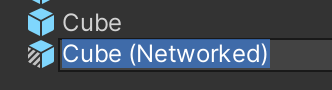
In our **Cube** example, instead of adding `CoherenceSync` to **Cube**, you can create a **Cube (Networked)** Prefab and add the component to it:

<figure><img src="https://content.gitbook.com/content/8utFtIPIKpqSCWkfmEu3/blobs/iVbGs7HnCoj9GLUu0XzZ/Screenshot%202022-09-07%20at%2015.47.02.png" alt="" width="188"><figcaption><p>Creating a variant of Cube</p></figcaption></figure>

This way, you can retain the original Prefab untouched, and build all the network functionality separately, in its own Prefab.

{% hint style="warning" %}
Ensure you're in **Isolation Prefab editing mode**, not In Context. Read about [Prefab modes](https://docs.unity3d.com/Manual/EditingInPrefabMode.html).
{% endhint %}

{% hint style="info" %}
Learn how to create and use Prefab variants in the [Unity Manual](https://docs.unity3d.com/Manual/PrefabVariants.html).
{% endhint %}

**Another way** to use Prefab variants to our advantage is to have a base Prefab using `CoherenceSync`, and create Prefab variants off that one with customizations.

For example, **Enemy** (base Prefab) and **Enemy 1**, **Enemy 2**, **Enemy 3**... (variant Prefabs, using different models, animations, materials, etc.). In this setup, all of the enemies will share base networking settings stored in `CoherenceSync`, so you don't have to manually update every one of them.

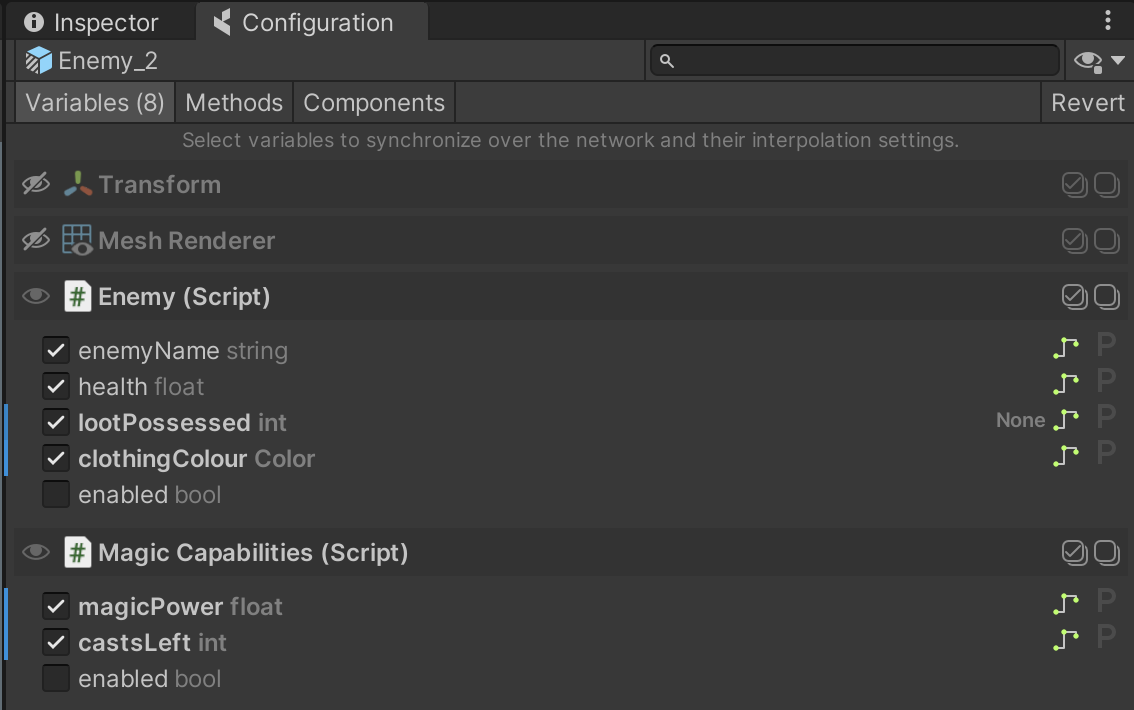
The Prefab variants inherits the network settings from their base, and you change those with overrides in the **Configuration** window. When a synced variable, method or component action is present in the variant and not in the parent, it will be bolded and it will have the blue line next to it, just like any other override in Unity:

<figure><img src="https://content.gitbook.com/content/8utFtIPIKpqSCWkfmEu3/blobs/OhlfRCA8S3qfzpyjot3P/PrefabVariantConfig.png" alt="" width="375"><figcaption><p>Prefab variant with a few overriden synced properties</p></figcaption></figure>

## **2. Configure `CoherenceSync`**

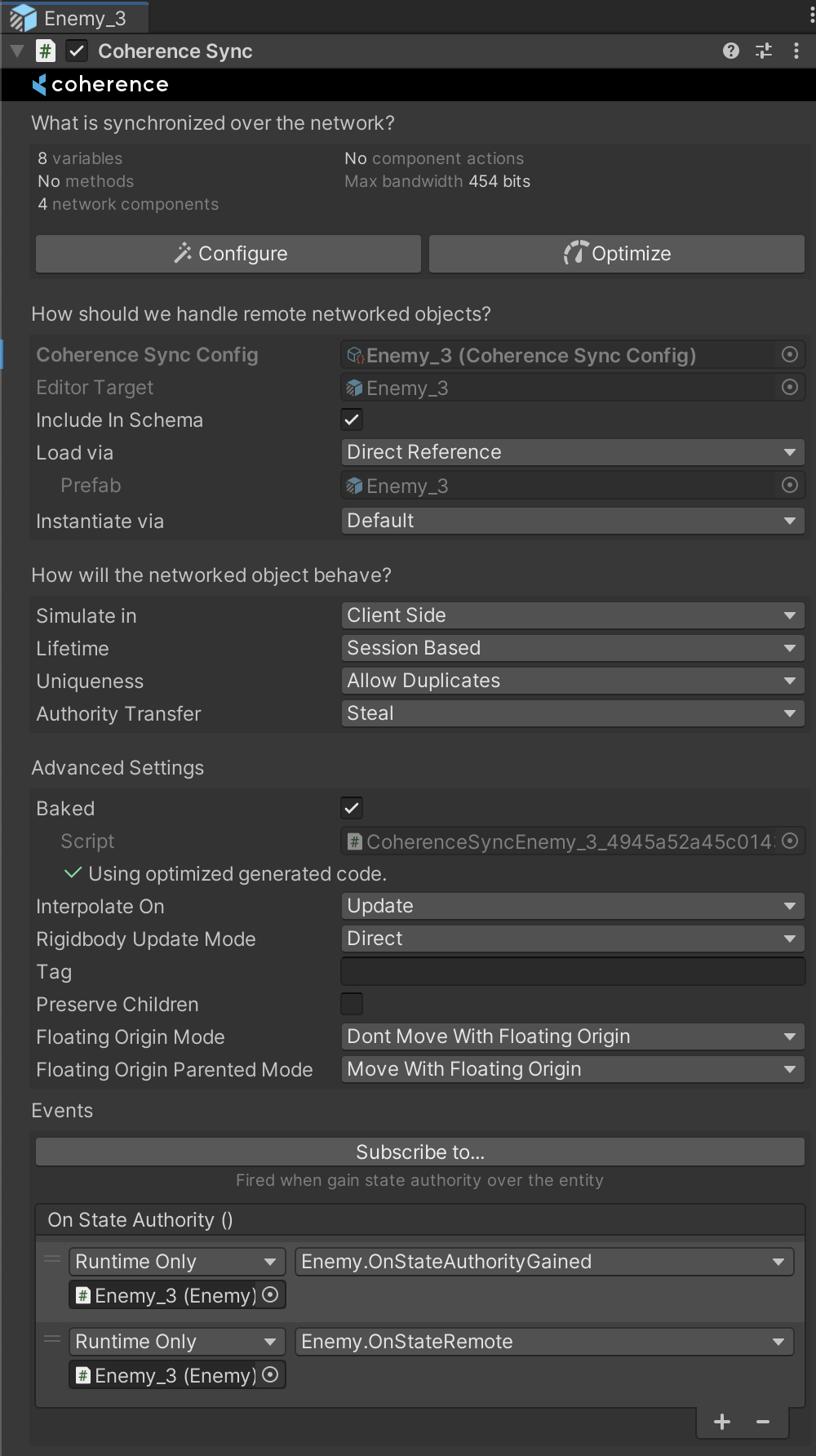
The `CoherenceSync` component will help you prepare an object for network synchronization during design time. It also exposes APIs that allow to manipulate the object during runtime.

<figure><img src="https://content.gitbook.com/content/8utFtIPIKpqSCWkfmEu3/blobs/lY0sqi7k7CNlVJ7xjqcb/CoherenceSync_Inspector.png" alt="" width="375"><figcaption><p>CoherenceSync inspector</p></figcaption></figure>

In its Inspector you can configure settings for **Lifetime** (*Session-based* or *Persistent*), **Authority transfer** (*Not Transferable*, *Request* or *Steal*), **Simulate In** (*Client-side*, *Server-side* or *Server-side with Client Input*) and **Adoption** settings for when persistent entities become orphaned, and more.

There are also a host of **Events** that are triggered at different times.

{% hint style="info" %}
Its Inspector has quite a number of settings. For more information on them, refer to [the `CoherenceSync` page](https://docs.coherence.io/1.6/manual/components/coherence-sync).
{% endhint %}

For now, we can leave these settings to their defaults.

### **2.1. Select variables to replicate**

`CoherenceSync` allows you to **automatically network all public variables** and methods on any of the attached components, from built-in Unity components such as `Transform`, `Animator` , etc. to any custom script, including scripts that came with the Asset Store packages that you may have downloaded.

{% hint style="warning" %}
Make sure the variables you want to network are set to **public**. **coherence** cannot sync non-public variables.
{% endhint %}

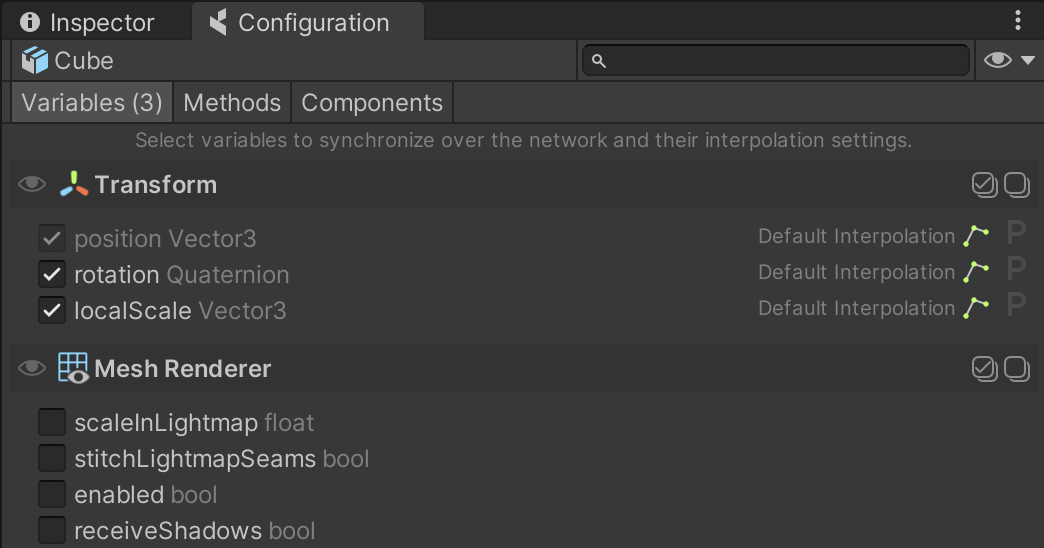
To set it up, click on the **Configure** button in the `CoherenceSync`'s Inspector. This brings up the **Configuration** window. Here you can select which variables you would like to sync across the network:

<figure><img src="https://content.gitbook.com/content/8utFtIPIKpqSCWkfmEu3/blobs/W6aHq7tWVE4xHJya0KKg/ConfigureWindow_BaseProperties.png" alt="" width="375"><figcaption><p>Configure Window</p></figcaption></figure>

You will notice that **position** is already selected, and can't be unchecked. For our use case, let's also add **rotation** and **localScale***.*

Close the **Configuration** dialog.

{% hint style="info" %}
Note that you can configure variables, methods and components not only on the root, but also [on child GameObjects](https://docs.coherence.io/1.6/manual/networking-state-changes/child-gameobjects).
{% endhint %}

## **3. Add a script**

Let's add a simple movement script that uses WASD or Arrow keys to move the Prefab in the scene.

Click on *Assets > Create > C# Script*. Name it `Move.cs`.

Copy-paste the following content into the file:

{% code title="Move.cs" %}

```csharp
using UnityEngine;

public class Move : MonoBehaviour
{
    public float speed = 1f;

    void Update()
    {
        float h = Input.GetAxisRaw("Horizontal");
        float v = Input.GetAxisRaw("Vertical");
    
        var spf = speed * Time.deltaTime;

        transform.position += transform.forward * (v * spf);
        transform.position += transform.right * (h * spf);
    }
}
```

{% endcode %}

Wait for Unity to compile, then attach the script to the Prefab.

## **4. Disable components on replicated objects**

We have added a `Move` script to the Prefab. This means that if we just run the scene, we will be able to use the keyboard to move the object around.

But what happens with Prefab belonging to other Clients? We don't have authority over them, they just need to be replicated. We **don't want our keyboard input interfering** with them, we just want the position coming from the network to be replicated.

For this reason, we need the `Move` component to be disabled when the object is remote. coherence has a quick way to do this.

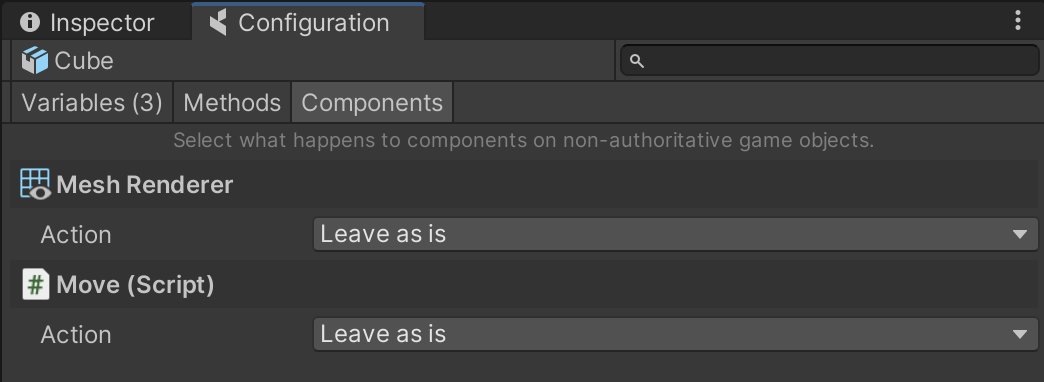
In the **Configuration** window, click the **Components** tab:

![](https://content.gitbook.com/content/8utFtIPIKpqSCWkfmEu3/blobs/FEQrPB5TTUrYHuxHhjUR/ComponentActions.png)

Here you will see a list of Component Actions that you can apply **to non-authoritative entities** that have been instantiated by coherence over the network.

Selecting *Disable* for your `Move` script will make sure the Component is disabled for network instances of the Prefab:

![](https://content.gitbook.com/content/8utFtIPIKpqSCWkfmEu3/blobs/yj1zM2uVppcZkhCUKrFO/ComponentActionDisabled.png)

This ensures that if a copy of this Prefab is instantiated on a Client with no authority, this script will be disabled and won't interfere with the position that is being synced.

## 5. Bake the netcode

Once everything is setup, you should ensure to run the process of [Baking](https://docs.coherence.io/1.6/manual/baking-and-code-generation): coherence will produce the necessary netcode (i.e. a bunch of C# scripts) to ensure that when the game is running and the Client connects, all of the properties and network messages you might have configured will correctly sync.

This process is very quick, and can be done in different ways:

* From the menu item *coherence > Bake*
* *From the icon next to the coherence folder in the Project Window*

<figure><img src="https://3473996028-files.gitbook.io/~/files/v0/b/gitbook-x-prod.appspot.com/o/spaces%2F8utFtIPIKpqSCWkfmEu3%2Fuploads%2FC5BwzWjGpCmAa0huyHNK%2Fimage.png?alt=media&#x26;token=78b419d6-108d-4707-a2f9-40ca6ab4270d" alt=""><figcaption></figcaption></figure>

* From the Hub

<figure><img src="https://3473996028-files.gitbook.io/~/files/v0/b/gitbook-x-prod.appspot.com/o/spaces%2F8utFtIPIKpqSCWkfmEu3%2Fuploads%2FOY3v7m4oWgRivm0tcfNQ%2Fimage.png?alt=media&#x26;token=0a44a927-e069-4731-8a01-7688a58ca911" alt=""><figcaption></figcaption></figure>

* From a CoherenceSync

<figure><img src="https://3473996028-files.gitbook.io/~/files/v0/b/gitbook-x-prod.appspot.com/o/spaces%2F8utFtIPIKpqSCWkfmEu3%2Fuploads%2FIdFMTMnTJhwpujY8uoaJ%2Fimage.png?alt=media&#x26;token=9f160f88-0068-4a50-9038-4e2994a28149" alt=""><figcaption></figcaption></figure>

***

{% hint style="success" %}
**To recap**

This is it! Setting up an object to be networked doesn't require additional steps:

* A Prefab with a `CoherenceSync` on it
* Configuring what to sync in the **Configure** window
* Disabling components on remote entities, in the **Configure** > **Components** tab
* Baking the netcode

Now let's run this setup [**locally**](https://docs.coherence.io/1.6/getting-started/setup-a-project/local-development) or using the [**coherence cloud**](https://docs.coherence.io/1.6/hosting/coherence-cloud).
{% endhint %}