> For the complete documentation index, see [llms.txt](https://docs.coherence.io/llms.txt). Markdown versions of documentation pages are available by appending `.md` to page URLs; this page is available as [Markdown](https://docs.coherence.io/getting-started/samples-and-tutorials/samples-connection-uis.md).
# Sample UIs
Sample UIs are ready-to-use interfaces that help players connect to a Replication Server running locally or in coherence Cloud.
The currently available samples are:
* [Rooms UI](#room-connect-dialog)
* [Worlds UI](#world-connect-dialog)
* [Lobbies UI](#lobbies-ui)
* [Matchmaking UI](#matchmaking-ui)
{% hint style="info" %}
The difference between Rooms and Worlds is explained on this page: [Rooms and Worlds](/manual/replication-server/rooms-and-worlds.md), while [Lobbies](/hosting/coherence-cloud/game-services/lobbies.md) have somewhat of a different role, in that they are usually used in addition to Rooms in a game flow.
{% endhint %}
## Importing a Sample UI
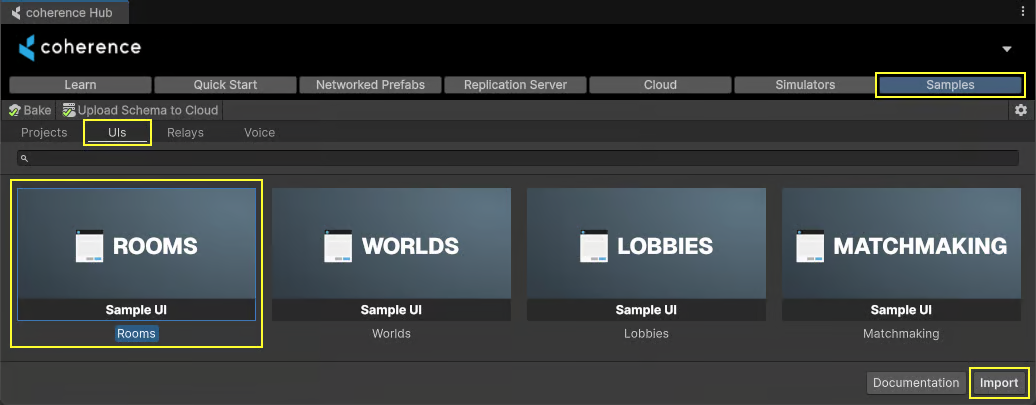
To import a sample UI into your project, open coherence via **coherence > Hub**, go the **Samples** page, select the sample you want under the **UIs** tab, and press **Import**.
This will cause the sample to get imported in the Samples directory of your project, if it isn't already.

## Rooms UI
The **Rooms UI** sample contains a dialog created using Unity UI that can be used to browse, create and join Rooms hosted in the coherence Cloud or in a locally hosted Replication Server.
### Setup
Before launching the sample scene, you need to either:
1. Start a [Replication Server](/manual/replication-server.md) running locally via **coherence > Run Replication Server for Rooms**,
2. or [log in to coherence Cloud](/getting-started/setup-a-project/test-in-the-cloud.md) via **coherence > Hub > Cloud > Signup / Login** and select a cloud Project to use.
You don't need to do anything else for the sample UI to work.
### Using the sample
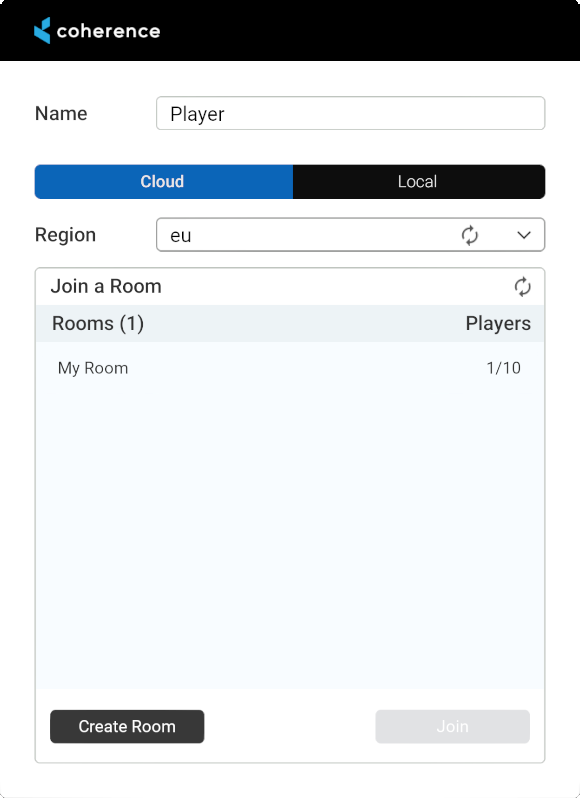
The **Rooms Connect Dialog** has a few helpful components that are explained below.
The Rooms connection dialog
* At the top of the dialog we have an **input field for the player's name**.
* Next is a **toggle between Cloud and Local**.\
You can switch to Local if you want to connect to a Replication Server for Rooms that is running on your computer.
* Next is a **dropdown for region selection**. This dropdown is populated when regions are fetched from the coherence cloud. The default selection is the first available region.\
This is not enabled when you switch from Cloud to Local. This is also only relevant if you deploy your game to several different regions.
* Next is a **dropdown of available Rooms** in the selected region (or in your local server if using the Local mode).
* After selecting a Room from the list the **Join** button can be used to join that Room.
* If you know someone has created a room but you don't see it, you can manually refresh the rooms list using the **Refresh** button.
#### Creating a room
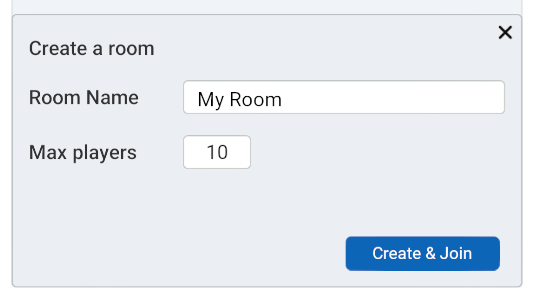
The **Create a room** section adds a Room to the selected region.
Create room section of the Rooms Connect dialog
This section contains controls for setting a **Room's name** and **maximum player capacity**. Pressing the ***Create*** button will create a Room with the specified parameters and immediately add it to the Room Dropdown above. **Create and Join** will create the Room, and also join it immediately.
## Worlds UI
The **Worlds UI** sample contains a dialog created using Unity UI that can be used to browse and join Worlds hosted in the coherence Cloud or in locally hosted Replication Servers.
### Setup
Before launching the sample scene, you need to either:
1. Start a [Replication Server](/manual/replication-server.md) running locally via **coherence > Run Replication Server for Worlds**,
2. or [log in to coherence Cloud](/getting-started/setup-a-project/test-in-the-cloud.md) via **coherence > Hub > Cloud > Signup / Login** and select a cloud Project to use.
### Using the sample
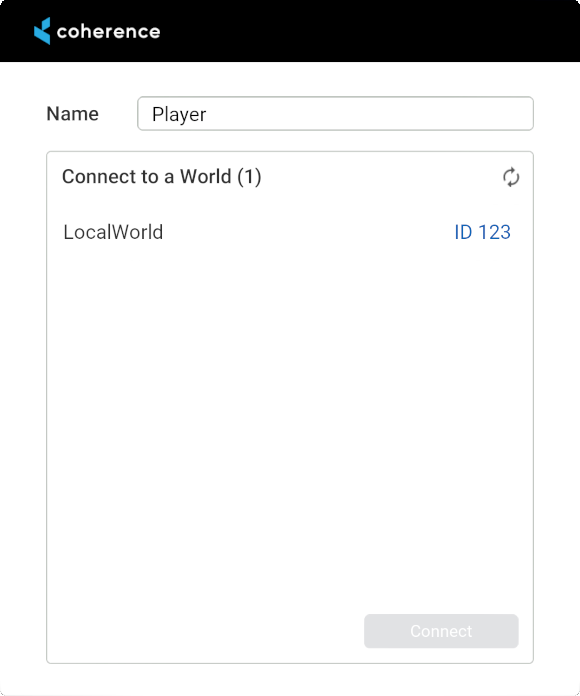
The **Worlds Connect Dialog** is a good option to start simple. It simply holds a **dropdown for region selection**, an input field for the **players name**, and a **Connect** button.
The Worlds connect dialog
If you start a local World Replication Server, it will appear as **LocalWorld**. Similarly if there are Worlds running in the [coherence Cloud](/hosting/coherence-cloud.md), they will be listed here.
## Lobbies UI
The **Lobbies UI** sample contains a dialog created using Unity UI that can be used to browse, create and join [Lobbies](/hosting/coherence-cloud/game-services/lobbies.md) hosted in the coherence Cloud.
Lobbies are a way to do matchmaking between players for your game.
### Setup
Before launching the sample scene, you need to [log in to coherence Cloud](/getting-started/setup-a-project/test-in-the-cloud.md) via **coherence > Hub > Cloud > Signup / Login** and select a cloud Project to use.
You will also need to have at least one **Region** enabled in the **Project Settings** section of your [Online Dashboard](/hosting/coherence-cloud/online-dashboard.md).
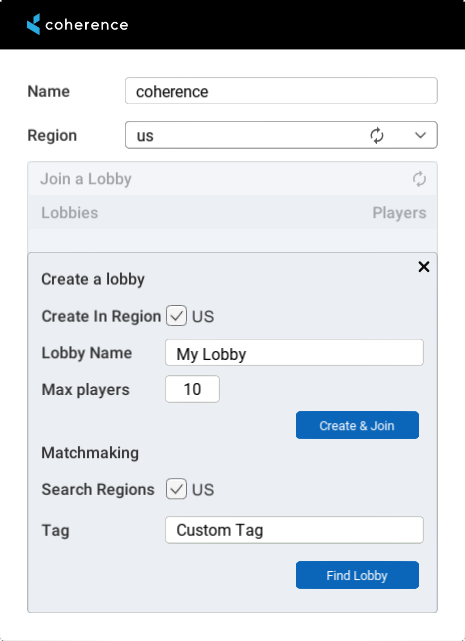
The Lobbies connect dialog
## Matchmaking UI
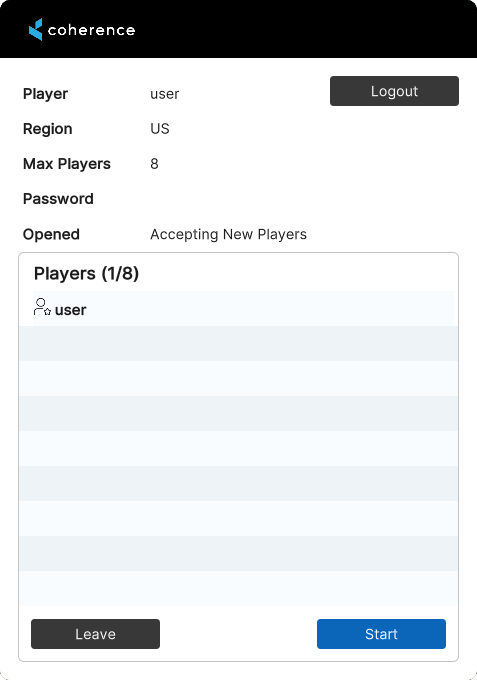
The Matchmaking UI sample contains a dialog created using the UI Toolkit that covers logging into a coherence Cloud [Player Account](/hosting/coherence-cloud/authentication-service-player-accounts.md) using a username and password, including our powerful Matchmaking and the coherence Lobbies feature.
You will be able to login or logout from Player Accounts, find suitable Lobbies automatically, integrated chat and persist game sessions even when players close the application.
### Setup
Before launching the sample scene, you need to [log in to coherence Cloud](/getting-started/setup-a-project/test-in-the-cloud.md) via **coherence > Hub > Cloud > Signup / Login** and select a cloud Project to use.
You will also need to have at least one **Region** enabled in the **Project Settings** section of your [Online Dashboard](/hosting/coherence-cloud/online-dashboard.md).
The Matchmaking connect dialog
## Modifying a sample
Samples are copied to your assets folder, in :open\_file\_folder: `Samples/coherence/version_number/`. This means you can change and customize the scripts and Prefabs however you like.
## Upgrading samples
Future versions of **coherence** won't override your changes. If you upgrade to a newer version of **coherence** and import a new sample, they will be imported in a separate folder named after the **coherence** version.
{% hint style="info" %}
If you want the new sample to overwrite the old one, first rename the folder in which the samples are, then import the new version.
The folder to rename is the one that is named after the version number (normally its path would be something like :file\_folder:`Samples/coherence/1.8.0/` for coherence 1.8.0).
{% endhint %}