> For the complete documentation index, see [llms.txt](https://docs.coherence.io/llms.txt). Markdown versions of documentation pages are available by appending `.md` to page URLs; this page is available as [Markdown](https://docs.coherence.io/getting-started/setup-a-project/local-development.md).
# 3. Playing locally
{% hint style="info" %}
If you prefer a video tutorial, refer to [Part 2](https://youtu.be/kyUSiBpZ2Bc?t=165) of our Getting Started series.
{% endhint %}
We need at least two clients connected, and a Replication Server to connect them to.
## Run a local Replication Server
You can run a local Replication Server directly on your machine by either:
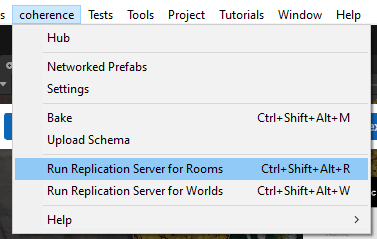
* Launch the Replication Server from the menu
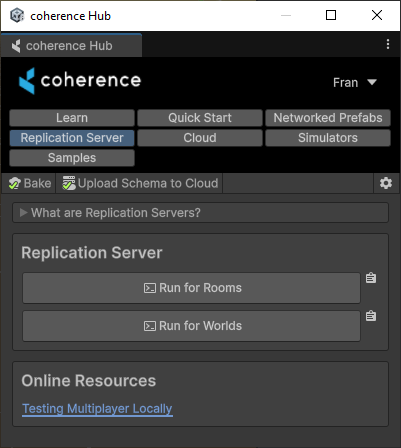
* Or through the **Hub**
{% hint style="info" %}
Whether you run a Replication Server for Rooms or for Worlds depends on [which setup you plan to use](/manual/replication-server/rooms-and-worlds.md), which in turn requires the correct corresponding [Sample UI](/getting-started/samples-and-tutorials/samples-connection-uis.md).
{% endhint %}
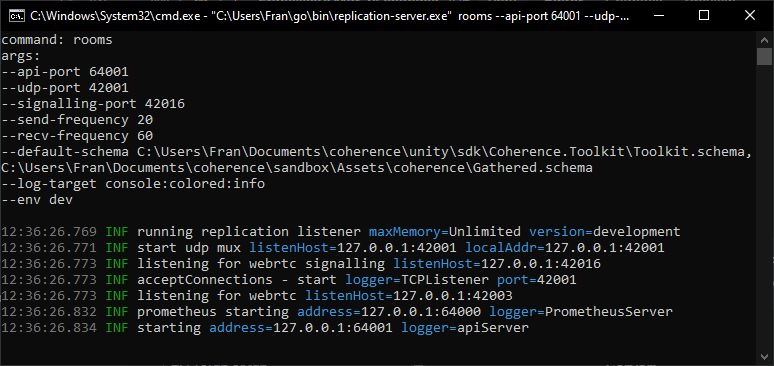
Regardless of how you launch it, a new terminal window will open and display the running Replication Server:
The Replication Server running in the Terminal
If the console opens correctly and you don't see an error line (they show up in red), it means your Replication Server is running! Now you should be able to connect to it, in the game.
## Run multiple instances of the game
It is often useful to be able to run multiple instances of your game on the same device. This allows you to simulate multiple player connections.
There are multiple ways to do this:
* [Make a build](/getting-started/setup-a-project/local-development/local-testing-using-builds.md) of the game
* Use [ParrelSync](/getting-started/setup-a-project/local-development/local-testing-via-parrelsync.md) to create clones of the project
* Use the [Multiplayer Play Mode](/getting-started/setup-a-project/local-development/multiplayer-play-mode.md) package
Dive into the individual pages to see our recommendation for each option.
{% hint style="info" %}
In this example, we will be connecting **one client always with the editor**, and the other one will be a standalone desktop build.
{% endhint %}
### Enter Play Mode
To test this setup, enter Play Mode on the Unity Editor, and use the rendered Sample UI to connect to a room or a world. Once there, you will see nothing. The game is empty — we didn't add anything at edit time, so that makes sense.
Now, open a second client connection — open the game build, and connect to the same world or room that you're connected on via the Unity Editor. The game is equally empty.
Now both clients are connected. Let's network while the game is open!
In the Unity Editor, find your Networked Prefab (our Cube, as described in the previous sections) and drag it on the scene.
The Unity Editor will show the Cube as green, since the editor is the one creating it (hence, has State Authority over it).
The build will show the Cube as red, since it's a replicated entity (doesn't have State Authority).
We can modify the transform in whatever way we want on the editor, and the changes will be replicated on the build.
***
{% hint style="success" %}
**In this section, we:**
* Ran a local Replication Server
* Saw how to run multiple instances of the game
* Connected to the Replication Server
Now that we know things work locally, it's time to [test the game in the coherence Cloud](/getting-started/setup-a-project/test-in-the-cloud.md)!
{% endhint %}