> For the complete documentation index, see [llms.txt](https://docs.coherence.io/llms.txt). Markdown versions of documentation pages are available by appending `.md` to page URLs; this page is available as [Markdown](https://docs.coherence.io/1.8/manual/components/coherence-cloud-login.md).
# CoherenceCloudLogin
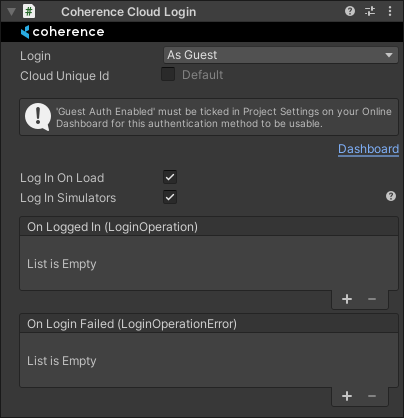
The **CoherenceCloudLogin** component provides a no-code solution for logging in to coherence Cloud.
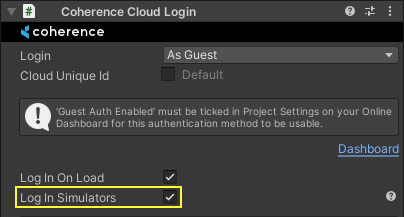
The CoherenceCloudLogin inspector
## Login Method
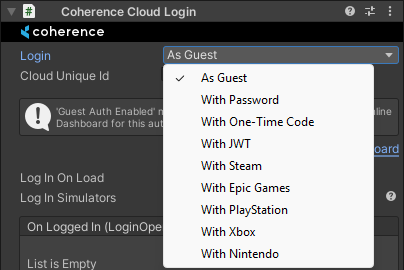
You can pick the login method the component should use from the **Login** dropdown menu.
All the Login options
The component supports all the same login methods as the [CoherenceCloud API](https://unityapi.coherence.io/docs/v1.8.0/api/Coherence.Cloud.CoherenceCloud.html):
1. [Guest](#guest)
2. [Password](#password)
3. [One-Time Code](#one-time-code)
4. [JWT](#linking)
5. [Steam](#steam)
6. [Epic Games](#epic-games)
7. [PlayStation](#playstation)
8. [Xbox](#xbox)
9. [Nintendo](#nintendo)
### Guest
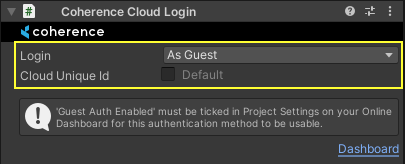
The easiest way to log in to coherence Cloud is to set **Login** to *As Guest*.
This configures the component to log players in to coherence Cloud using a guest account.
When a player logs in to a project for the first time, a new guest id will be generated for them automatically. The guest id is cached locally on the player's device and used to log them in again to the same guest account when they relaunch the application.
{% hint style="danger" %}
It is important to know that uninstalling the application will also wipe out the data for the guest account, and players will no longer be able to access it even if they install it again.
{% endhint %}
#### Cloud Unique Id
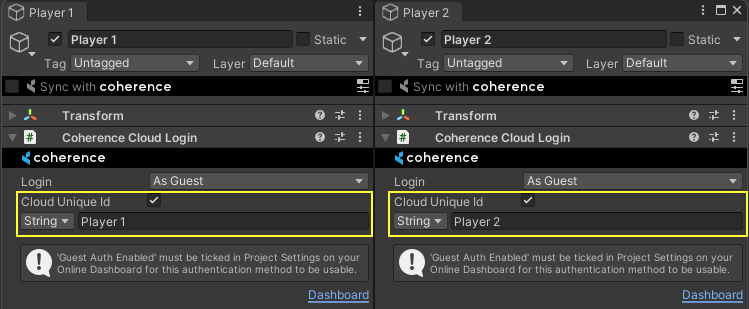
The **Cloud Unique Id** field can be used to provide a custom locally unique identifier for the guest account that will be created.
Cloud Unique Ids can be used to log into multiple different guest player accounts on the same device. This might be useful for local multiplayer games, to give each player access to their own guest player account.
### Password
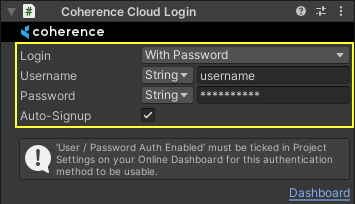
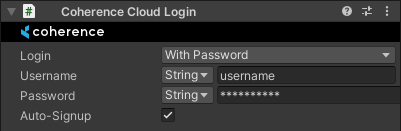
The *With Password* login method can be used to log in to coherence Cloud with a username and a password.
If *Auto-Signup* is enabled, a new Player Account with the provided username and password will be automatically created, if one does not exist already.
{% hint style="info" %}
**User / Password Auth Enabled** must be ticked in Project Settings on your [Online Dashboard](/1.8/hosting/coherence-cloud/online-dashboard.md) for this authentication method to be usable.
{% endhint %}
### Steam
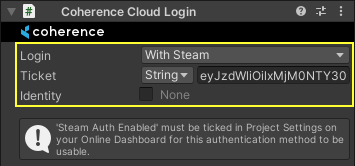
The *With Steam* login method can be used to log in to coherence Cloud with a Steam account.
To do so, you have to at least add an authentication ticket for the Steam User that you want to log in as to the *Ticket* field. You can get the ticket from the [SteamUser.GetAuthTicketForWebApi](https://partner.steamgames.com/doc/api/ISteamUser#GetAuthTicketForWebApi).
If you passed an identity string to the **SteamUser.GetAuthTicketForWebApi** method, you also need to configure the *Identity* field to match it.
{% hint style="info" %}
**Steam Auth Enabled** must be ticked in Project Settings on your [Online Dashboard](/1.8/hosting/coherence-cloud/online-dashboard.md) for this authentication method to be usable.
{% endhint %}
### Epic Games
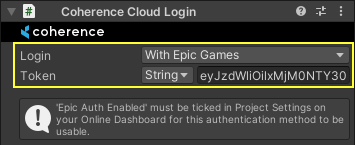
The *With Epic Games* login method can be used to log in to coherence Cloud with an Epic Games account.
{% hint style="info" %}
**Epic Auth Enabled** must be ticked in Project Settings on your [Online Dashboard](/1.8/hosting/coherence-cloud/online-dashboard.md) for this authentication method to be usable.
{% endhint %}
### One-Time Code
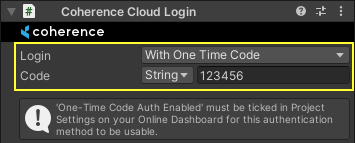
The *With One-Time Code* login method can be used to log in to coherence Cloud with a temporary code acquired using **PlayerAccount.GetOneTimeCode**.
```csharp
using Coherence.Cloud;
using UnityEngine;
public class AcquireOneTimeCodeExample : MonoBehaviour
{
async void Start()
{
PlayerAccount playerAccount = await CoherenceCloud.LoginAsGuest();
string oneTimeCode = await playerAccount.GetOneTimeCode();
Debug.Log($"Login with this code on your other device: {oneTimeCode}.");
}
}
```
There are two use cases for one-time codes:
1. Transferring progress from one device to another.
2. Recovering access to a lost account.
One-time codes expire after a certain time and can only be used once.
{% hint style="info" %}
**One-Time Code Auth Enabled** must be ticked in Project Settings on your [Online Dashboard](/1.8/hosting/coherence-cloud/online-dashboard.md) for this authentication method to be usable.
{% endhint %}
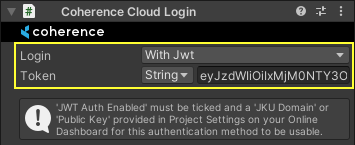
### JWT
The *With* JWT login method can be used to log in to coherence Cloud with a custom JSON Web Token.
{% hint style="info" %}
**JWT Auth Enabled** must be ticked in Project Settings on your [Online Dashboard](/1.8/hosting/coherence-cloud/online-dashboard.md) for this authentication method to be usable.
{% endhint %}
{% hint style="info" %}
The `aud` claim must equal your project ID.
{% endhint %}
### PlayStation
The *With PlayStation* login method can be used to log in to coherence Cloud with a PlayStation Network account.
{% hint style="info" %}
**PSN Auth Enabled** must be ticked in Project Settings on your [Online Dashboard](/1.8/hosting/coherence-cloud/online-dashboard.md) for this authentication method to be usable.
{% endhint %}
### Xbox
The *With Xbox* login method can be used to log in to coherence Cloud with an Xbox account.
{% hint style="info" %}
**Xbox Auth Enabled** must be ticked in Project Settings on your [Online Dashboard](/1.8/hosting/coherence-cloud/online-dashboard.md) for this authentication method to be usable.
{% endhint %}
### Nintendo
The *With Nintendo* login method can be used to log in to coherence Cloud with a Nintendo Services account.
{% hint style="info" %}
**Nintendo Auth Enabled** must be ticked in Project Settings on your [Online Dashboard](/1.8/hosting/coherence-cloud/online-dashboard.md) for this authentication method to be usable.
{% endhint %}
### Input Methods
You can use the Inspector to configure the credentials that should be used when logging in using the selected login method.
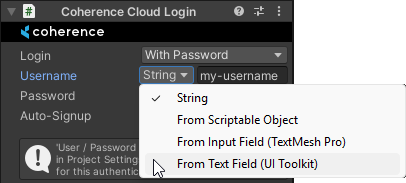
If you pick the **String** input method, you'll be able to provide the credentials directly using the Inspector. This can be useful for testing purposes while developing the game:
You can also pick another input method using the dropdown to support players providing their own credentials at runtime. Three input methods are support in addition to raw strings at this time: [ScriptableObject assets](https://docs.unity3d.com/Manual/class-ScriptableObject.html), [UI Toolkit Text Fields](https://docs.unity3d.com/Manual/UIE-uxml-element-TextField.html) and [TextMesh Pro Input Fields](https://docs.unity3d.com/Packages/com.unity.textmeshpro@4.0/api/TMPro.TMP_InputField.html).
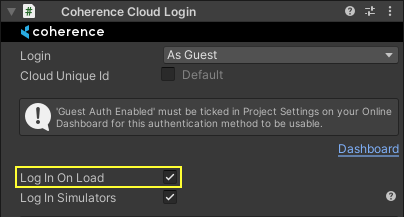
## Log In On Load
If the **Log In On Load** option is enabled, the component will automatically start logging in to coherence Cloud when it is loaded.
If the option is disabled, then the login process can be started manually by executing the **LogInAsync** method.
## Log In Simulators
If the **Log In Simulators** option is enabled, [Simulators](/1.8/manual/simulation-server.md) will be logged in using the Simulator session token that has been provided as a command line argument.
Other **Login** configuration is ignored in Simulator builds.
## Accessing the Player Account
If your scenes contain a single **CoherenceCloudLogin** component with **Log In On Load** enabled, you can acquire the PlayerAccount it logs into anywhere using [PlayerAccount.GetMainAsync](https://unityapi.coherence.io/docs/v1.8.0/api/Coherence.Cloud.PlayerAccount.GetMainAsync.html).
```csharp
using Coherence.Cloud;
using UnityEngine;
public class MainPlayerAccountExample : MonoBehaviour
{
async void Start()
{
PlayerAccount playerAccount = await PlayerAccount.GetMainAsync();
var services = playerAccount.Services;
Debug.Log($"Ready to use {services} of {playerAccount}.");
}
}
```
It is also possible to use multiple **CoherenceCloudLogin** components to log into multiple separate PlayerAccounts simultaneously on the same device. This might be useful in a game that supports local multiplayer.
You can acquire the PlayerAccount that a particular **CoherenceCloudLogin** component logs into using **LogInAsync**. After **IsLoggedIn** has become **true**, it can also be acquired using the **PlayerAccount** property.
```csharp
using Coherence.Cloud;
using Coherence.Toolkit;
using UnityEngine;
public class CoherenceCloudLoginPlayerAccountExample : MonoBehaviour
{
[SerializeField] CoherenceCloudLogin cloudLogin;
async void Start()
{
PlayerAccount playerAccount = await cloudLogin.LogInAsync();
var services = playerAccount.Services;
Debug.Log($"Ready to use {services} of {playerAccount}.");
}
}
```
## Unity Events
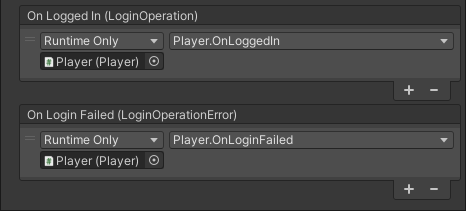
The CoherenceLogin component offers a couple of Unity Events in its Inspector where you can hook your custom game logic:
### OnLoggedIn
Event that is raised when the component has successfully logged in to coherence Cloud.
### OnLoginFailed
Event that is raised when the component has failed to log in to coherence Cloud.