> For the complete documentation index, see [llms.txt](https://docs.coherence.io/llms.txt). Markdown versions of documentation pages are available by appending `.md` to page URLs; this page is available as [Markdown](https://docs.coherence.io/1.1/coherence-sdk-for-unity/client-messages.md).
# Client Connections
Communication between Clients
### Overview
**ClientConnections** are `CoherenceSyncs` that the `CoherenceBridge` can handle for you and that let you uniquely identify users connected, find them by their ID, and easily send commands between those users.
When using ClientConnections, `CoherenceBridge` will spawn a `CoherenceSync` for each connection (Client or Simulator). Those `CoherenceSyncs` are subject to a different ruleset than standard `CoherenceSyncs`:
* They can't be created or destroyed by the Client - they are always driven by `CoherenceBridge`.
* They are global - they are replicated across Clients regardless of the [Live Query](/1.1/coherence-sdk-for-unity/components/livequery.md) extent.
ClientConnections shine whenever there's a need to communicate something to all the connected players. Usage examples:
* Global chat
* Game state changes: game started, game ended, map changed
* Server announcements
* Server-wide leaderboard
* Server-wide events
### Enabling ClientConnections
The global nature of **ClientConnections** doesn't fit all game types - for example, it rarely makes sense to keep every Client informed about the presence of all players on the server in an MMORPG. If this is your use case, don't set **ClientConnections** on your `CoherenceBridge`.
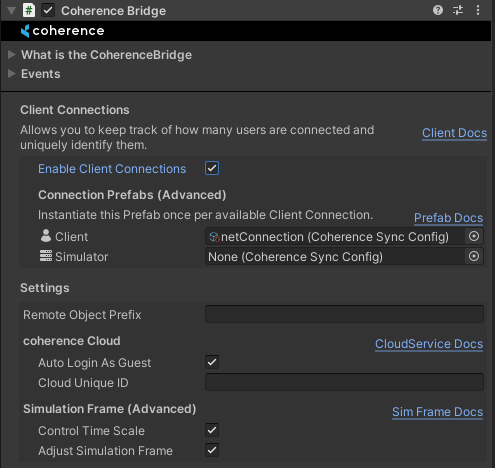
To enable **ClientConnections***,* turn *Global Query* **on** in your [`CoherenceBridge`](/1.1/coherence-sdk-for-unity/components/coherencebridge.md) (it should be **on** by default):
{% hint style="info" %}
Disabling *Global Query* on one Client doesn't affect other Clients, i.e. the **ClientConnection** object of this Client will still be visible to other Clients that have *Global Query* turned **on**.
{% endhint %}
### Connection management
Most of the **ClientConnection** functionality is accessible through the `CoherenceBridge.ClientConnections` object:
```csharp
using System.Collections.Generic;
using Coherence.Connection;
using Coherence.Toolkit;
using UnityEngine;
public class ExampleGameManager : MonoBehaviour
{
public CoherenceBridge Bridge;
void Start()
{
// Raised whenever a new connection is made (including the local one).
Bridge.ClientConnections.OnCreated += connection =>
{
Debug.Log($"Connection #{connection.ClientId} " +
$"of type {connection.Type} created.");
};
// Raised whenever a connection is destroyed.
Bridge.ClientConnections.OnDestroyed += connection =>
{
Debug.Log($"Connection #{connection.ClientId} " +
$"of type {connection.Type} destroyed.");
};
// Raised when all initial connections have been synced.
Bridge.ClientConnections.OnSynced += connectionManager =>
{
Debug.Log($"ClientConnections are now ready to be used.");
};
}
void Update()
{
// IMPORTANT: All of the connection retrieving calls may return null
// if the connection system was not turned on, not initialized yet,
// or simply if the connection was not found.
// Specifies how many clients are in this session (Room or World).
int clientCount = Bridge.ClientConnections.ClientConnectionCount;
// Returns connection objects for all connections in this session.
IEnumerable allConnections
= Bridge.ClientConnections.GetAll();
// Returns all connections except for the local one.
IEnumerable otherConnections
= Bridge.ClientConnections.GetOther();
// Returns connection object of the local user.
CoherenceClientConnection myConnection
= Bridge.ClientConnections.GetMine();
// Returns connection object of the Simulator (if one is connected).
CoherenceClientConnection simulatorConnection
= Bridge.ClientConnections.GetSimulator();
// Retrieves a connection by its ClientID.
CoherenceClientConnection selectedConnection
= Bridge.ClientConnections.Get(myConnection.ClientId);
// Retrieves a connection by its EntityID (warning: requires
// a connection Prefab with a CoherenceSync attached).
if (myConnection.Sync != null)
{
selectedConnection
= Bridge.ClientConnections.Get(myConnection.Sync.EntityID);
}
// Specifies if this is a Client or a Simulator connection.
ConnectionType connectionType = selectedConnection.Type;
// Specifies if this is a local connection (belonging to the
// local user).
bool isMine = selectedConnection.IsMyConnection;
// Returns a GameObject associated with this connection.
// Applicable only if connection Prefabs are used.
GameObject connectionGameObject = selectedConnection.GameObject;
}
}
```
Each connection is represented by a plain C# `CoherenceClientConnection` object. It contains all the important information about a connection - its `ClientID`, `Type`, whether it `IsMyConnection`, and a reference to the `GameObject` and `CoherenceSync` associated with it.
{% hint style="warning" %}
The `CoherenceClientConnection.ClientID` is guaranteed to not change during a connection's lifetime. However, if a Client disconnects and then connects again to the same Room/World, a new `ClientID` will be assigned (since a new connection was established).
{% endhint %}
### ClientConnection objects
Each **ClientConnection** can have a `CoherenceSync` automatically being spawned and associated with it. Those objects, like any other objects with `CoherenceSync`, can be used for syncing properties or sending messages, with a little twist - they are global and thus not limited by the `CoherenceLiveQuery` extent. That makes them perfect candidates for operations like:
* Syncing global information - name, stats, tags, etc.
* Sending global messages - chat, server interaction
To enable connection objects:
#### 1. Create a ClientConnection Prefab
This step is described in detail in the [Prefab setup section](/1.1/get-started/prefab-setup.md). In short, it is enough to create a Prefab with a `CoherenceSync` and a custom component (`PlayerConnection` in this example):

#### 2. Link a ClientConnection Prefab to the `CoherenceBridge`
For the system to know which object to create for every new Client connection, we have to link our Prefab to the `CoherenceBridge`. Simply drag the prefab to the *Client* field in the inspector:

From now on every new connection will be assigned an instance of this Prefab, which can be accessed through the `CoherenceClientConnection.GameObject` property.
#### Prefab selection
Note that there's a separate field for the *Simulator Connection Prefab*. It can be used to spawn a completely different object for the Simulator connection that may contain Simulator-specific commands and replicated properties. If the field is left empty, no object will be created for the Simulator connection.
The Prefab selection process can be also controlled from code using the `CoherenceBridge.ClientConnections.ProvidePrefab` callback:
```csharp
using Coherence.Toolkit;
using UnityEngine;
public class ExampleGameManager : MonoBehaviour
{
public CoherenceSync CustomConnectionPrefab;
private CoherenceBridge bridge;
void Start()
{
bridge = FindAnyObjectByType();
bridge.ClientConnections.ProvidePrefab += (clientId, connectionType) =>
{
return CustomConnectionPrefab;
};
}
```
{% hint style="info" %}
A Prefab provided through the `ProvidePrefab` callback takes precedence over Prefabs linked in the Inspector.
{% endhint %}
### Client messages
Client messages is a shortcut to send [Network Commands](/1.1/coherence-sdk-for-unity/networking-state-changes/commands.md) using a `CoherenceClientConnection` object as the target instead instead of a `CoherenceSync`. The end recipient of the command will however still be the `CoherenceSync` associated with the [ClientConnection Prefab](/1.1/coherence-sdk-for-unity/client-messages.md#clientconnection-objects), just like a regular Network Command.
Preparing to use Client messages requires the same approach as exposing a command on a script present on the **Client Connection Prefab** that we set up in the `CoherenceBridge` in the previous section:
```csharp
using UnityEngine;
public class PlayerConnection : MonoBehaviour
{
// My chat command
public void OnChatMessage(string message)
{
Debug.Log($"Received chat message: {message}");
}
}
```
Don't forget to bind the method to define a Command:
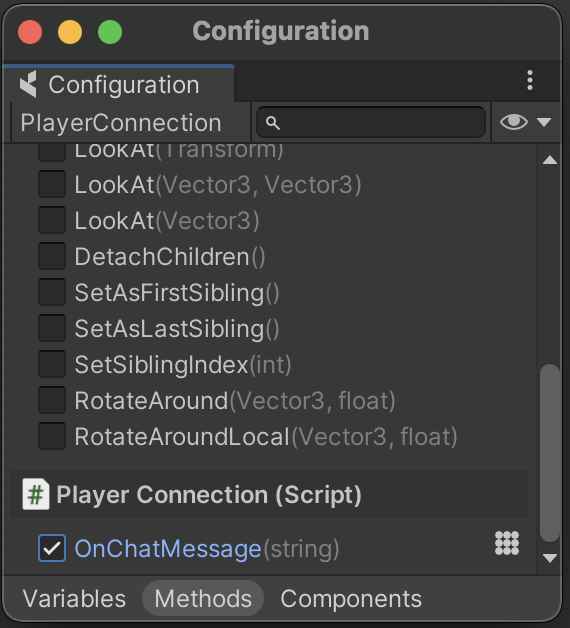
That same Command can now be sent using the `CoherenceClientConnection.SendClientMessage` method:
```csharp
using UnityEngine;
using Coherence;
using Coherence.Toolkit;
public class PlayerConnection : MonoBehaviour
{
void Start()
{
var bridge = FindObjectOfType();
CoherenceClientConnection myConnection = bridge.ClientConnections.GetMine();
myConnection.SendClientMessage(nameof(OnChatMessage),
MessageTarget.Other, "Hello!");
}
// My chat command
public void OnChatMessage(string message)
{
Debug.Log($"Received chat message: {message}");
}
}
```
If the `ClientID` of the message recipient is known we can use the `CoherenceBridge.ClientConnections` directly to send a Client message:
```csharp
private ClientID lastClientId;
private void OnConnectionCreated(CoherenceClientConnection clientConnection)
{
if (!clientConnection.IsMyConnection)
{
lastClientId = clientConnection.ClientId;
}
}
public void SendMessageToLastConnection(string message)
{
var bridge = FindAnyObjectByType();
bridge.ClientConnections.SendMessage("OnChatMessage",
lastClientId, MessageTarget.AuthorityOnly, "Hello!");
}
```