> For the complete documentation index, see [llms.txt](https://docs.coherence.io/llms.txt). Markdown versions of documentation pages are available by appending `.md` to page URLs; this page is available as [Markdown](https://docs.coherence.io/1.1/get-started/build-and-run.md).
# Testing locally
Now we can build the project and try out network replication locally. This example will show you how to launch a local [Replication Server](/1.1/coherence-sdk-for-unity/replication-server.md) and connect multiple instances of the game to it.
## Running a Replication Server locally
You can run a local Replication Server from:
*coherence > Local Replication Server > Run for Rooms / Run for Worlds*
 As with most features found in the menu, you can find local Replication Server functionality in the *coherence Hub* as well.
Open the *Replication Servers* tab and run a Room or a World Replication Server:
As with most features found in the menu, you can find local Replication Server functionality in the *coherence Hub* as well.
Open the *Replication Servers* tab and run a Room or a World Replication Server:
 Regardless of how you launch it, a new terminal window will open and display the running Replication Server:
 {% hint style="info" %}
Whether you run one for Rooms or for Worlds depends on [which setup you plan to use](/1.1/overview/rooms-and-worlds.md), which in turn requires the correct corresponding [Sample UI](/1.1/get-started/scene-setup/samples.md).
{% endhint %}
## Build and Connect
Now it's time to make a standalone build and test network replication.
{% hint style="info" %}
\#protip: Go to *Project Settings, Player* and change the *Fullscreen Mode* to ***Windowed*** and enable ***Resizable Window***. This will make it much easier to observe standalone builds side-by-side when testing networking.
{% endhint %}
Open the *Build Settings* window (*File > Build Settings*). Click on *Add Open Scenes* to add the current scene to the build.
Click *Build and Run***.**
{% hint style="info" %}
Whether you run one for Rooms or for Worlds depends on [which setup you plan to use](/1.1/overview/rooms-and-worlds.md), which in turn requires the correct corresponding [Sample UI](/1.1/get-started/scene-setup/samples.md).
{% endhint %}
## Build and Connect
Now it's time to make a standalone build and test network replication.
{% hint style="info" %}
\#protip: Go to *Project Settings, Player* and change the *Fullscreen Mode* to ***Windowed*** and enable ***Resizable Window***. This will make it much easier to observe standalone builds side-by-side when testing networking.
{% endhint %}
Open the *Build Settings* window (*File > Build Settings*). Click on *Add Open Scenes* to add the current scene to the build.
Click *Build and Run***.**
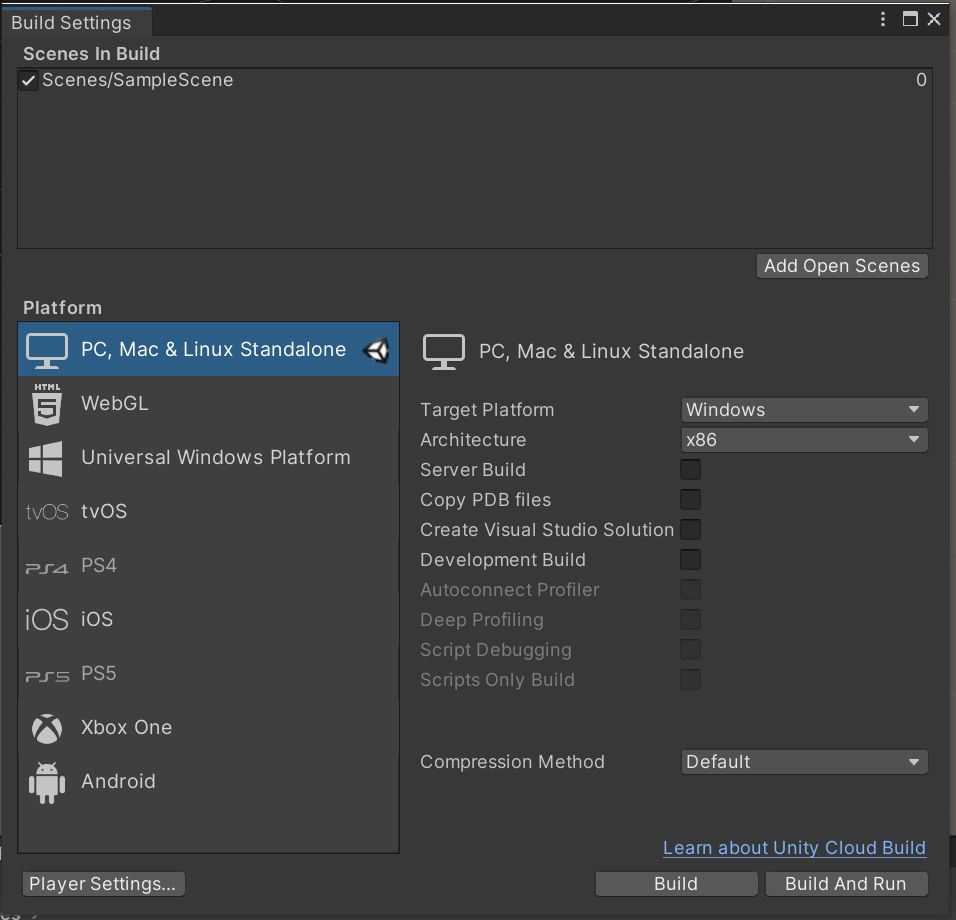 Select a folder (e.g. *Builds*) and click *OK*.
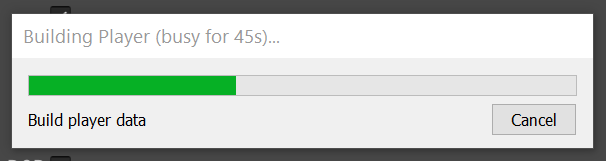 When the build is done, start another instance of the executable (or run the project in Unity by just hitting Play).
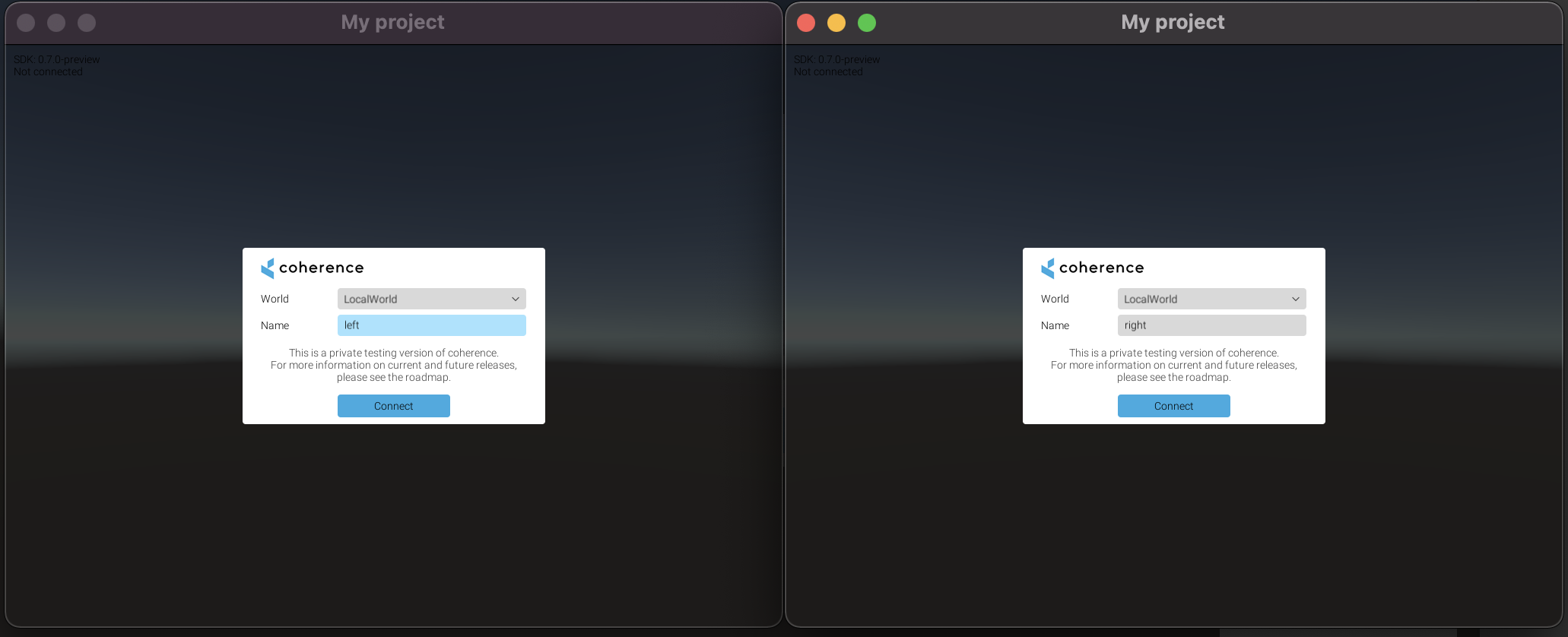
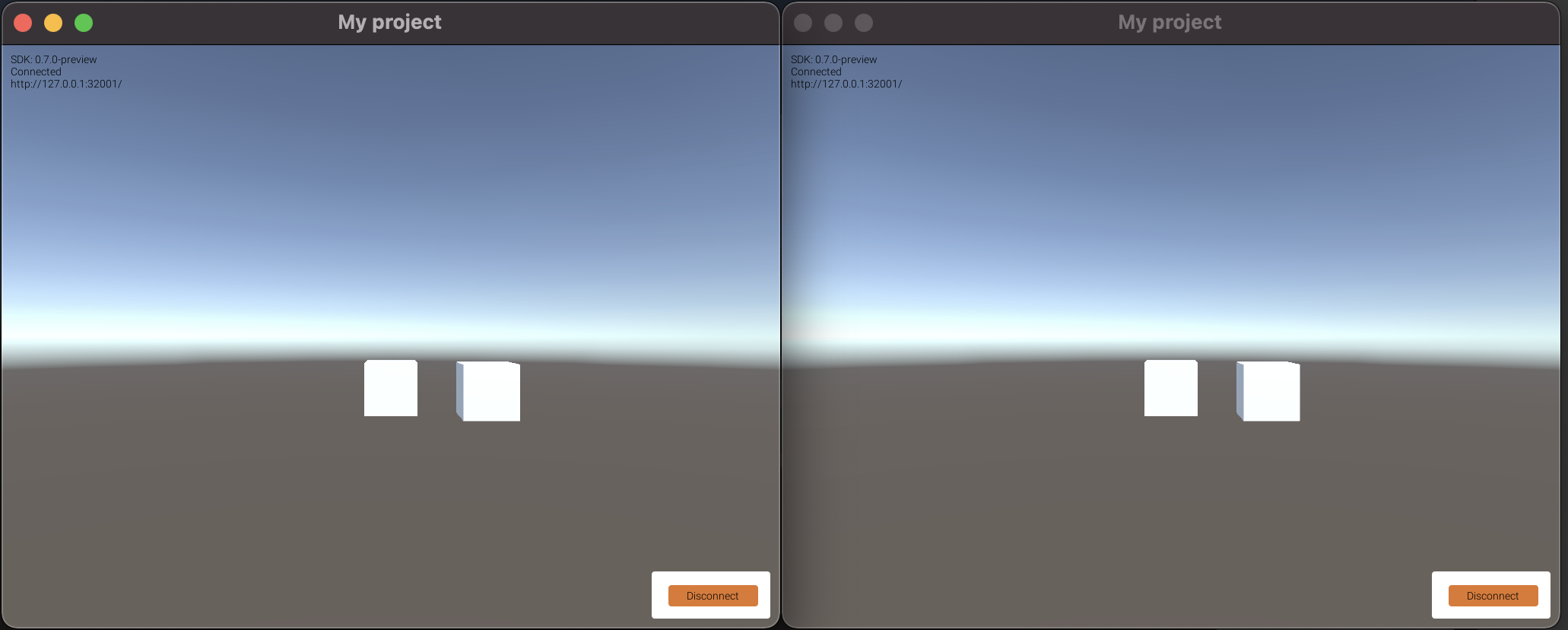
Click *Connect* in the connection UIs on both clients. Now, try focusing on one and using WASD keys. You will see the box move on the other side as well.
{% hint style="success" %}
Congratulations! You've made your first coherence replicated experience. But this is only the beginning. Keep exploring the documentation to take advantage of more advanced coherence features.
{% endhint %}
When the build is done, start another instance of the executable (or run the project in Unity by just hitting Play).

Click *Connect* in the connection UIs on both clients. Now, try focusing on one and using WASD keys. You will see the box move on the other side as well.

{% hint style="success" %}
Congratulations! You've made your first coherence replicated experience. But this is only the beginning. Keep exploring the documentation to take advantage of more advanced coherence features.
{% endhint %}