> For the complete documentation index, see [llms.txt](https://docs.coherence.io/llms.txt). Markdown versions of documentation pages are available by appending `.md` to page URLs; this page is available as [Markdown](https://docs.coherence.io/hosting/coherence-cloud/configure-rooms.md).
# Configure Rooms
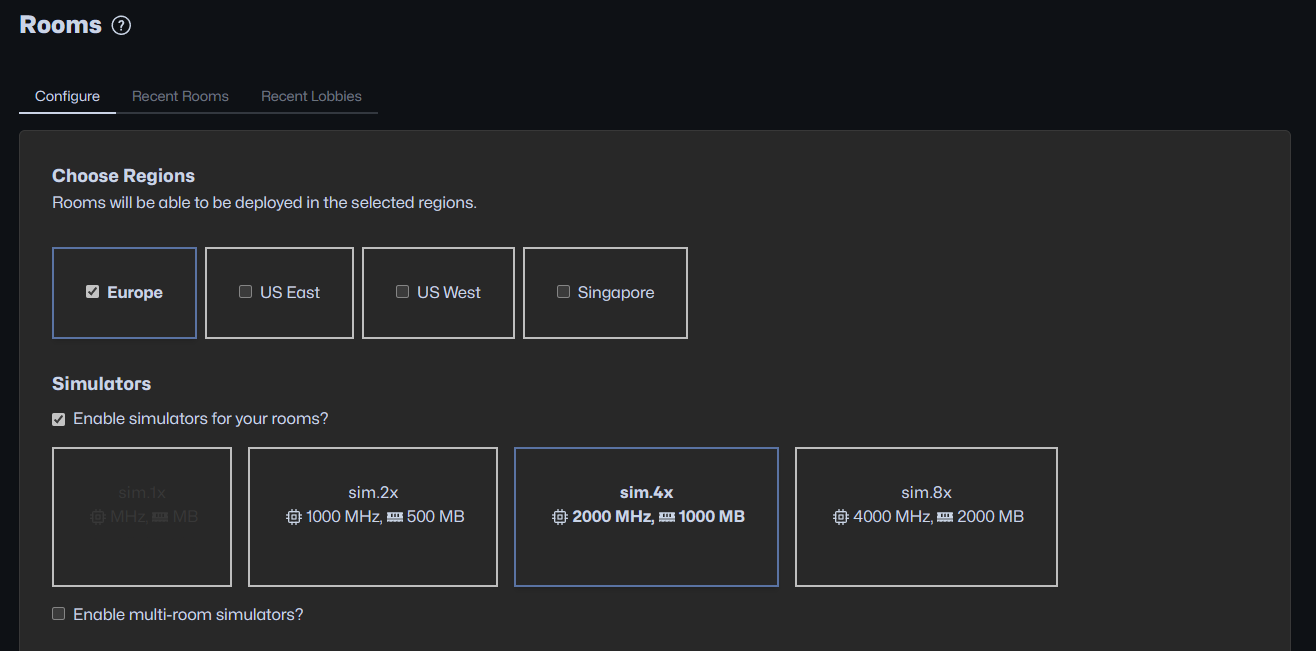
From the Online Dashboard, you can configure how Rooms are created through the SDK in the coherence cloud.
Configuring rooms in the Online Dashboard
From the left sidebar, select **Rooms**. On this page you can:
* Choose the regions you want to allow your rooms to be created in.
* Enable Simulators for your Rooms.
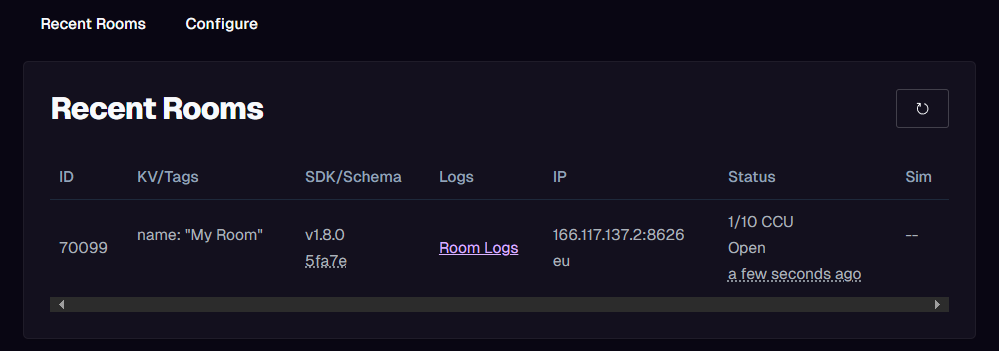
* View a list of recently created Rooms.
* View a list of recently uploaded Simulators.
### Simulators
From the Online Dashboard, you can configure what size you want your [Simulator](/manual/simulation-server.md) instances to be. To attach a Simulator to a Room, send the ["Simulator slug"](/manual/simulation-server/simulator-slugs.md) uploaded through the SDK with the Rooms creation request. When using the [Unity Cloud Service API](/hosting/coherence-cloud/coherence-cloud-apis.md) to create Rooms, the Simulator uploaded through the SDK is automatically assigned in the creation request.
### Replication Server & Send Frequency
The packet frequencies for sending and receiving data can be adjusted per project. It is part of the **Advanced Config** section and adjusting the frequencies is available only for paid plans.
### Recent Rooms Table
The **Recent Rooms Table** provides a quick view of the recently created Rooms with the following information per column:
| Column name | Description |
| -------------- | ------------------------------------------------------------------------------------------ |
| **ID** | ID of the Room. |
| **KV/Tags** | Key-value pairs associated with the Room, followed by Tags attached to the Room. |
| **SDK/Schema** | SDK version used by the Room, followed by the Schema ID used by the Room. |
| **Logs** | Allows viewing Room logs and Replication Server (RS) logs. |
| **IP** | IP address of the Replication Server attached to the Room, followed by a region indicator. |
| **Status** | Open / Closed, how many active players and when it was created |
| **Sim Status** | Status of the Simulator attached to the Room (Starting, Started, Stopped). |
| **Sim** | Simulator Slug for the Room (if using Simulators) |
### Creating, Fetching and Joining Rooms in Unity
Please refer to the [Cloud Service API: Rooms](/hosting/coherence-cloud/coherence-cloud-apis/rooms.md) section.
### Closing Rooms
Rooms are automatically closed within a few minutes after the last player has left the room. This can be changed in the **Advanced Config** section.
### Current Limits
**Players**
The default setting is 10 players hosted, but you can specify your own value anywhere **between 2 and 100 players**.
To support more than a 100 players per room, write to ****
**Entities**
**1000 by default**, but can be increased up to 65535 in local development or client-hosted scenarios.
There is no UI button for increasing the supported player count, so you need to work through our [Rooms API](/hosting/coherence-cloud/coherence-cloud-apis/rooms.md).
When creating a room via `ReplicationServerRoomsService.CreateRoom` you can pass `SelfHostedRoomCreationOptions` as creation options.
To change the Entity limit just set the `SelfHostedRoomCreationOptions.MaxEntities` to a desired value.
**Tags**
* Each individual tag: max 50 characters.
* Total size of all tags combined: max 500 bytes.
**Key-Value Pairs**
* Each individual key: max 50 characters (min 1).
* Each individual value: max 50 characters (min 1).
* Total size of all keys + values combined: max 2,000 bytes.